How to Back Up and Restore Your WhatsApp Chats (Android & iPhone)
Losing years of WhatsApp conversations because of a broken phone or a factory reset is one of those tech disasters that feels entirely avoidable — until it happens to you. Whether you're switching to a new device, recovering from data loss, or just being cautious, knowing how to back up and restore your WhatsApp chats is a skill worth having before you need it.
Why Backing Up Your WhatsApp Chats Matters
WhatsApp does not automatically sync your messages to the cloud unless you configure it to do so. By default, your chat history lives on your device — and only your device. If that device is lost, stolen, or wiped, those messages are gone permanently.
Think about what actually lives in your WhatsApp account: family group chats, business conversations, voice messages, photos shared over years. None of that is stored on WhatsApp's servers in a retrievable form after delivery. The company's end-to-end encryption model means even WhatsApp itself can't hand you back your messages.
A proper backup routine takes under a minute to set up and can save hours of frustration — or irreplaceable memories.
What Gets Included in a WhatsApp Backup
A WhatsApp backup includes your messages, media files, and voice messages — but not everything you might expect. Here's a clear breakdown before you assume your backup covers everything.
What is backed up:
- All text messages and chat history
- Photos and videos shared in chats
- Voice messages and audio files
- Documents and stickers sent in conversations
- Group chat history (if you were a participant)
What is NOT backed up:
- Call logs (on most backup configurations)
- Messages from accounts you've blocked
- WhatsApp Status posts (these disappear after 24 hours regardless)
- Messages in chats where disappearing messages were enabled and have already vanished
- Deleted messages — once gone, they're not recoverable through backup
One thing many users overlook: media files can significantly inflate backup size. If your Google Drive or iCloud storage is nearly full, WhatsApp may fail to complete a backup silently. More on that in the troubleshooting section.
How to Back Up WhatsApp on Android (Google Drive)
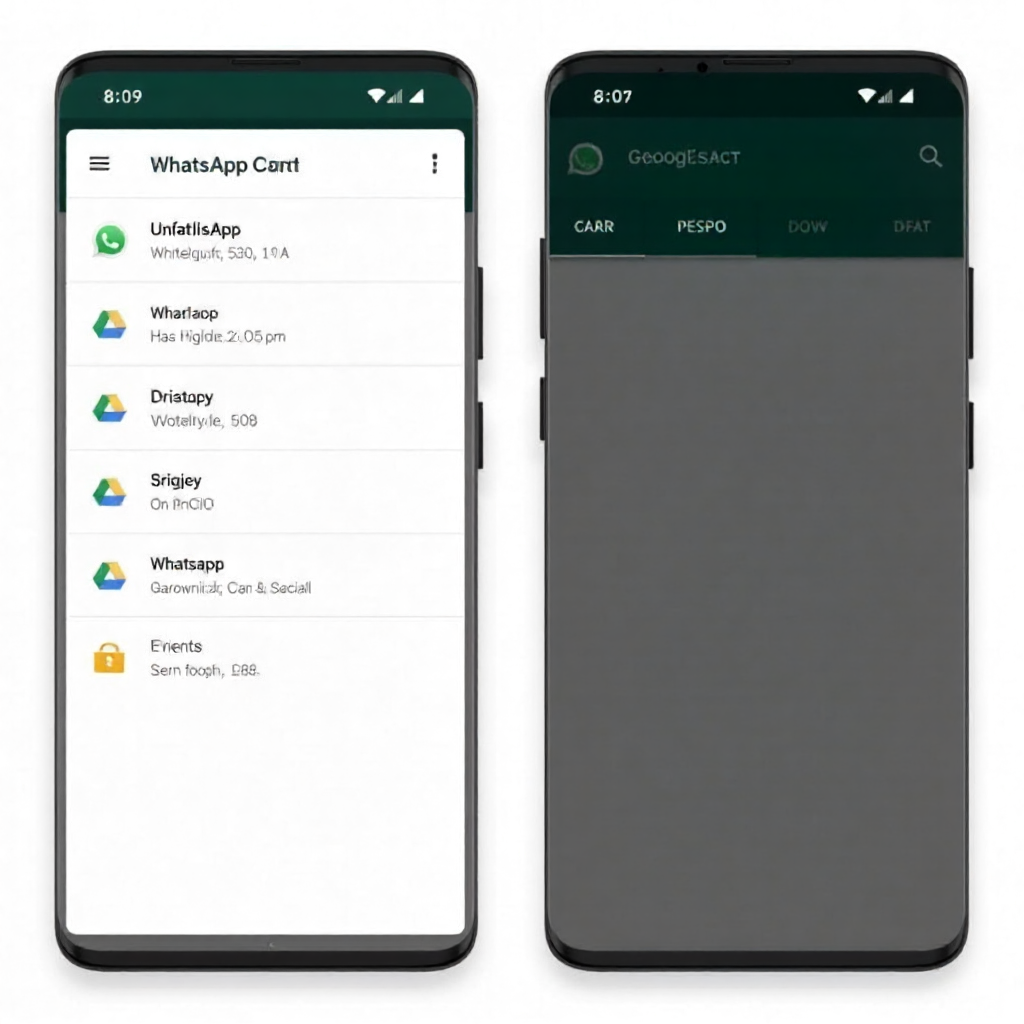
Android users back up WhatsApp through Google Drive, which stores chat history separately from your phone's regular Google account backup. The path is straightforward once you know where to look.
Steps to enable and run a backup:
- Open WhatsApp and tap the three-dot menu in the top-right corner.
- Go to Settings > Chats > Chat Backup.
- Tap Back Up to Google Drive and choose a frequency: Daily, Weekly, or Monthly.
- Select the Google account you want to use for the backup.
- Choose whether to include videos (note: this can make backups significantly larger).
- Tap Back Up Now to run an immediate backup.
You'll see a progress bar and a timestamp showing when the last backup completed. That timestamp is your confirmation — if it shows today's date, the backup worked.
WhatsApp also creates a local backup on your device storage automatically every day, stored in the WhatsApp/Databases folder. This is a fallback, but it's only useful if you can access the device's internal storage directly — not helpful if the phone is lost or destroyed.
How to Back Up WhatsApp on iPhone (iCloud)
iPhone users back up WhatsApp through iCloud rather than Google Drive. The process is similar in structure but requires iCloud to be active on your device first.
Before starting, confirm iCloud is enabled: Go to your iPhone's Settings > [Your Name] > iCloud and make sure you have available storage. Free iCloud accounts come with 5GB, which fills up fast if you're also backing up photos and other apps.
Steps to back up WhatsApp on iPhone:
- Open WhatsApp and go to Settings > Chats > Chat Backup.
- Tap Auto Backup and select your preferred frequency (Off, Daily, Weekly, Monthly).
- Toggle on Include Videos if you want video files included.
- Tap Back Up Now to start an immediate backup to iCloud.
The backup uploads directly to your iCloud account under WhatsApp's own storage allocation. You can verify it worked by going to iPhone Settings > [Your Name] > iCloud > Manage Account Storage and looking for WhatsApp in the list.
One practical note: Daily backups on iPhone drain battery faster than on Android because iOS handles background tasks differently. Weekly backups are a reasonable middle ground for most users.
How to Restore WhatsApp Chats on a New or Reset Device
Restoring your WhatsApp chat history happens during the initial setup process — not from within the app after installation. This is the step most people miss.
On Android (from Google Drive):
- Install WhatsApp on your new or reset device.
- Open the app and verify your phone number (same number used for the original backup).
- WhatsApp will automatically detect an existing backup linked to your Google account.
- Tap Restore when prompted. Do not skip this screen.
- Wait for the restore to complete before tapping Next.
On iPhone (from iCloud):
- Install WhatsApp and verify your phone number.
- When WhatsApp detects your iCloud backup, tap Restore Chat History.
- The restore may take several minutes depending on backup size and connection speed.
- Once complete, your chats will appear as they were at the time of the last backup.
Critical detail: the phone number you verify must match the number associated with the backup. If you've changed numbers, the restore won't trigger automatically — you'll need to use WhatsApp's Change Number feature before switching devices.
Transferring WhatsApp Chats Between Android and iPhone
Moving WhatsApp chats from Android to iPhone (or the reverse) is possible through official tools, but it comes with real limitations that are worth understanding upfront.
WhatsApp supports cross-platform transfer using two official methods:
- Move to iOS app: Apple's Move to iOS app includes a WhatsApp transfer option when setting up a new iPhone from an Android device. This works during initial iPhone setup only and requires both devices to be nearby and connected to the same Wi-Fi network.
- WhatsApp's built-in transfer tool: On Android, go to Settings > Chats > Move Chats to iPhone. This generates a QR code that your iPhone scans during setup.
For transferring from iPhone to Android, WhatsApp added a direct transfer option using a cable connection during Android device setup on Samsung Galaxy devices first, with broader Android support rolling out over time.
Honest caveat: cross-platform transfers don't always go perfectly. Some media files may not transfer completely, and the process requires both devices to be present and functional simultaneously. It's not a method you can use after the fact — it only works during the new device's initial setup. If you've already completed setup on the new phone, you'll need to factory reset it to try again.
Backup Tips, Frequency, and Troubleshooting Common Issues
Setting up a backup once and forgetting it is the right approach — as long as the backup is actually running. Here's what to watch for and how to handle the most common problems.
Recommended Backup Frequency
For most users, weekly backups strike the best balance between storage consumption and data protection. Daily backups make sense if you use WhatsApp heavily for business. Monthly is fine for casual users who mostly chat and rarely share media.
Common Backup Problems and Fixes
Backup not appearing on Google Drive or iCloud: This almost always comes down to storage. Check available space in your cloud account — WhatsApp needs enough room to write the entire backup file. If storage is full, the backup fails without a clear error in the app. Free up space or upgrade your storage plan.
Backup stuck or taking too long: Large media libraries slow things down significantly. Try enabling backup over Wi-Fi only (WhatsApp's default) and plugging in your phone. Backups that include years of videos can take 20-30 minutes on a slow connection.
Restore not showing up during setup: Confirm you're signed into the same Google or iCloud account that was used for the original backup, and that you're verifying the same phone number. A mismatch on either will prevent WhatsApp from detecting the backup.
How to verify a backup completed successfully: On Android, the timestamp in Settings > Chats > Chat Backup updates after each successful backup. On iPhone, check iCloud storage as described earlier. If the timestamp is stale (more than a week old when you have daily backups enabled), something is blocking the process.
End-to-End Encrypted Backup
WhatsApp offers an optional end-to-end encrypted backup for both Android and iPhone. When enabled, your backup is protected by a 64-digit encryption key or a password you create — meaning not even Google or Apple can read the contents. This is a meaningful privacy upgrade, but it comes with a real trade-off: if you lose the key or forget the password, the backup cannot be recovered. There's no reset option. Enable it only if you're confident you can store the key securely, such as in a password manager.
Frequently Asked Questions
How do I know if my WhatsApp backup was successful?
On Android, open WhatsApp > Settings > Chats > Chat Backup and check the timestamp labeled "Last backup." On iPhone, go to iPhone Settings > [Your Name] > iCloud > Manage Storage and look for WhatsApp — a recent date confirms the backup completed.
Can I restore a WhatsApp backup without losing my current chats?
No. Restoring a backup replaces your current chat history with the backed-up version. If you restore an older backup, any messages received after that backup was created will be lost. There's no merge option.
Why is my WhatsApp backup not showing up on Google Drive or iCloud?
The most common causes are insufficient cloud storage, a mismatched Google or Apple account, or a poor internet connection during the backup process. Check available storage first — it solves the problem in most cases.
Does WhatsApp backup include deleted messages?
No. Once a message is deleted from your device, it is not included in future backups. If a message was present during a previous backup, that older backup file would contain it — but WhatsApp doesn't provide a way to selectively restore individual messages from older backups.
Is WhatsApp's end-to-end encrypted backup safe to enable?
Yes, with one important caveat. The encryption itself is strong and adds genuine privacy protection. The risk is user-side: if you lose your encryption key or password, your backup becomes permanently inaccessible. Store the key in a password manager before enabling this feature.