How to Recover Deleted WhatsApp Messages: A Safe, Step-by-Step Guide
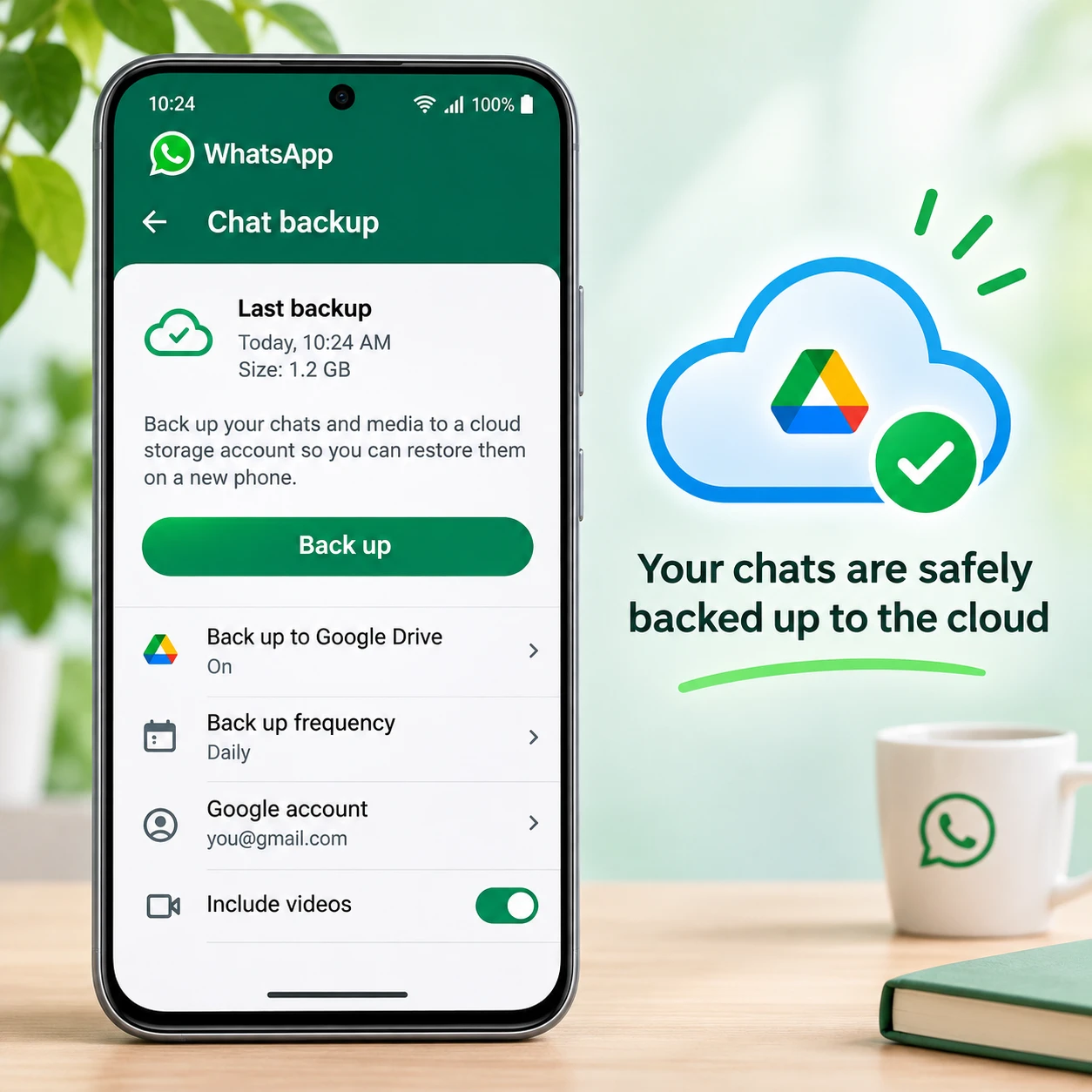
Deleted WhatsApp messages can usually be recovered only if they are included in a chat backup made before they were deleted. The safest approach is to check the backup date first, then restore it using WhatsApp’s built-in process for your device.
Restoring an older backup can replace newer chat history, so pause before uninstalling the app. The steps also differ between Android and iPhone, and recovery is not guaranteed if no suitable backup exists.
Can You Recover Deleted WhatsApp Messages?
You can recover deleted WhatsApp messages if a Google Drive, iCloud, or eligible local backup contains them. If no backup includes the messages, WhatsApp generally cannot retrieve them from its servers for you.
A backup is a saved copy of your chat history from a particular point in time. To recover a message, you need a backup created after the message arrived but before it was deleted. A backup made after deletion may no longer contain it.
WhatsApp messages are protected by end-to-end encryption during personal chats. This protects messages in transit, but it does not create a recovery archive that WhatsApp can browse on your behalf. Backup availability and the account settings used for backup matter.
Recovery is therefore a timing question: Does a usable backup include the conversation, and are you willing to return your chat history to that backup date? Check both points before you begin.
Check Your WhatsApp Backup Before Restoring
Check the backup date and account in WhatsApp before restoring anything. The date tells you whether the saved chat history may include the deleted messages and how much recent history could be affected.
On either platform, open WhatsApp and go to Settings > Chats > Chat Backup. Review the last backup time and date, the backup frequency, and the account shown for the cloud backup. Menu wording can vary slightly by app version.
- Android: Check the Google account linked to Google Drive and note the last backup date. WhatsApp may also have local backup files on the phone, depending on the device and app setup.
- iPhone: Check the iCloud chat backup date and confirm that iCloud Drive is available and enabled for WhatsApp.
Compare the backup time with when the message was deleted. If the backup predates the deletion, it may contain the message. If it was created afterward, it may reflect the deletion. Avoid tapping Back Up before considering the dates: a new backup can replace an older cloud backup that might have held the conversation.
Also confirm you can access the same phone number and Google or Apple account used to create the backup. Without those, WhatsApp may not find or verify the saved chat history.
Restore Deleted Messages on Android
To restore WhatsApp messages on Android, reinstall WhatsApp and restore the Google Drive or available local backup when prompted. First confirm that the backup date is suitable and that you can access the Google account and phone number associated with it.
- Open WhatsApp’s Settings > Chats > Chat Backup screen and note the backup date and Google account.
- If the backup could contain the messages, uninstall WhatsApp, then reinstall it from Google Play.
- Open WhatsApp and verify the same phone number used to create the backup.
- When WhatsApp detects a backup, choose Restore. Keep the phone connected to a reliable network and power while the chat history loads.
- After the chats appear, allow any media restoration to finish. Photos and videos may take longer than messages.
Google Drive restoration typically depends on the account and number used for the backup. Some Android devices also retain local backups, but file locations, retention, and availability vary. Don’t delete or move backup files unless you understand which copy WhatsApp will use; local files are not a guaranteed substitute for a cloud backup.
If WhatsApp does not offer a restore option, check the Google account, phone number, internet connection, and backup availability. Reinstalling repeatedly will not create a missing backup.
Restore Deleted Messages on iPhone
To restore WhatsApp messages on iPhone, reinstall the app and use the iCloud chat backup detected during setup. The backup must be available in the iCloud account used to create it, and you must verify the same phone number.
- In WhatsApp, open Settings > Chats > Chat Backup and record the last backup date.
- Confirm you are signed in to the relevant Apple Account and that iCloud Drive is enabled for WhatsApp.
- If the backup may contain the deleted messages, delete and reinstall WhatsApp from the App Store.
- Open WhatsApp, verify the same phone number, and choose Restore Chat History when prompted.
- Leave the app connected to Wi-Fi and power while messages and any included media download.
If the restore prompt does not appear, check that iCloud Drive is on, the correct Apple Account is active, and enough device and iCloud storage is available. An iCloud backup tied to a different account or phone number may not be usable for the current setup.
What to Know Before You Restore
Restoring a WhatsApp backup returns chat history to the state captured on its backup date. Messages received after that date may be missing from the restored history, so check the trade-off before proceeding.
For example, if a backup from Monday contains the message you deleted on Tuesday, restoring it may bring back that message. But chats added on Wednesday may not be included in Monday’s saved copy. WhatsApp does not merge every old backup message with all newer messages automatically.
- Check the backup date: Compare it with both the deletion date and the newest messages you want to keep.
- Use the same number and account: Restore generally requires the phone number and cloud account associated with the backup.
- Don’t rush into a new backup: It could overwrite a useful cloud backup, depending on your setup.
- Protect encrypted backups: If you enabled end-to-end encrypted backups, you may need the password or key you set. WhatsApp cannot use a password or key you cannot provide to decrypt that backup.
When newer conversations are important, save essential information separately before restoring, where practical. The choice is a trade-off: recovering older messages may mean giving up chat history created after the backup.
Can You Recover Messages Without a Backup?
In most cases, deleted WhatsApp messages cannot be restored through WhatsApp if no usable backup exists. WhatsApp does not provide a general server-based recovery service for deleted personal chats.
Be cautious with third-party recovery apps that promise guaranteed results. They may ask for broad access to your phone, notifications, or private data, and their success depends on the device and what information was retained. Some may not recover the original conversation at all. Avoid sharing your WhatsApp verification code, backup password, or encryption key with an untrusted service.
Notification history or message previews might show fragments on some devices if they were recorded before deletion, but they are not a complete or dependable chat backup. They may omit older messages, media, or content that was never displayed in a notification. Treat these as limited clues, not a recovery method.
If the conversation matters, you can ask the other participant whether they still have it and can share relevant messages. This does not restore your chat history, but it may be the simplest option when no backup contains the messages.
Prevent Losing Messages in the Future
To reduce the risk of losing WhatsApp messages, enable automatic chat backups and choose a frequency that fits how often your conversations change. Check that the correct Google Drive or iCloud account has enough storage and remains accessible.
Open Settings > Chats > Chat Backup and review the automatic backup schedule. Daily backups reduce the gap between saved copies, while weekly or monthly schedules use fewer resources but leave more recent messages unprotected if the phone is lost or reset.
- Confirm the latest backup date periodically, especially before changing phones or reinstalling WhatsApp.
- Keep access to the linked Google or Apple account and the phone number used for WhatsApp.
- If you use an end-to-end encrypted backup, store its password or key securely. Losing it may prevent restoration.
- Check whether videos are included. Excluding them can save storage, but those videos may not return with a restored backup.
A backup schedule is useful only if the backup completes and can be accessed. A quick monthly check of the date and account can catch a problem before you need message recovery.
Frequently Asked Questions
Can I recover messages deleted before my last backup?
Possibly. You need a backup created after the messages arrived but before they were deleted. If the last backup was made after deletion, those messages may not be in it.
Will restoring a backup delete newer messages?
Restoring an older backup can leave out messages created after its backup date. Check the date and preserve important newer information before restoring.
Can I recover WhatsApp messages without a backup?
Usually not through WhatsApp. Third-party tools and notification records are limited and unreliable, so avoid services that promise guaranteed recovery or request sensitive account details.
Do Android and iPhone recovery steps differ?
Yes. Android commonly restores from Google Drive, and may have local backups; iPhone uses iCloud chat backup. Both processes require the relevant account and the same phone number used for the backup.