How to Schedule Messages on WhatsApp Using Third-Party Tools
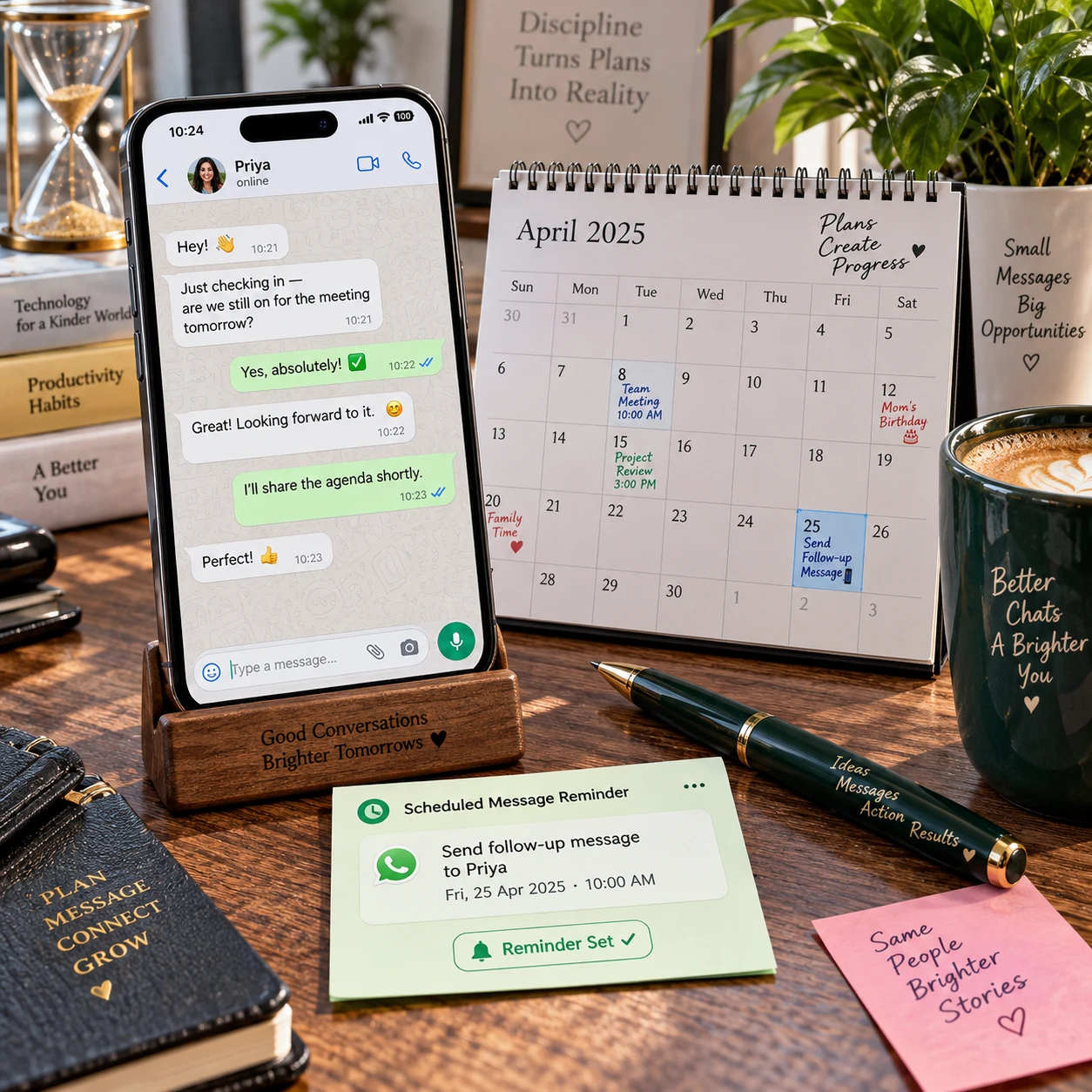
Want to send a birthday greeting at midnight or a work reminder first thing in the morning? WhatsApp does not offer a general built-in feature for scheduling regular messages, so some people use third-party scheduling apps or phone automation. The setup depends on whether you use Android or iPhone, and a scheduled message may still need your confirmation before it is sent.
Before choosing a tool, check what it can access, how it handles your information, and what happens if your phone is locked or offline. These details matter as much as setting the recipient and delivery time.
Can You Schedule Messages Directly in WhatsApp?
WhatsApp does not provide a standard native scheduler for ordinary chats. Third-party scheduling apps and device automation can help prepare a message for later, but their ability to send it without your involvement varies.
Many tools work by opening WhatsApp at the chosen time and filling in the recipient or message. Depending on the app, phone settings, and operating-system restrictions, you may then need to tap a confirmation button. That is different from a message being sent silently in the background.
WhatsApp Business includes features for managing customer conversations, such as greeting and away messages, but those are not the same as scheduling any custom message to a chosen contact at a future time. Check the current feature description in the app before relying on it for a particular task.
Think of a third-party scheduler as a reminder-and-launch system unless its behavior has been tested on your device. This expectation helps prevent missed messages and avoids treating unofficial automation as a WhatsApp feature.
What to Check Before Choosing a Scheduling Tool
Choose a scheduling tool only after checking compatibility, permissions, privacy practices, and whether it sends automatically or asks you to confirm. A convenient app may rely on broad access to your phone, so weigh that access against the value of the scheduled message.
- Device compatibility: Confirm that the app supports your Android version or iPhone model and works with your installed WhatsApp version.
- Sending method: Look for clear instructions stating whether the app sends the message itself, opens a prepared chat, or displays a notification for you to approve.
- Permissions: Review any request for Accessibility access, notifications, contacts, or background activity. Accessibility permission can let an app observe or interact with screen content, so grant it only when you understand why it is needed.
- Privacy practices: Read the privacy policy and check whether messages, contact details, or usage information are stored or shared. Avoid entering WhatsApp passwords or verification codes into a scheduler.
- Trust and maintenance: Check the developer, recent updates, support information, and user reports. An app that has not been maintained may stop working after an operating-system or WhatsApp update.
Be cautious of claims that a tool can bypass WhatsApp safeguards or guarantee delivery under every condition. No third-party app can promise that a message will arrive if the phone is unavailable, permissions are revoked, or the recipient cannot receive it.
How to Schedule WhatsApp Messages on Android
On Android, choose a reputable scheduling app, set the message and recipient, pick a time, then follow the app’s instructions for confirmation and permissions. The exact screens differ by tool, Android version, and WhatsApp setup.
- Review the app first. Install only from a source you trust, check its current permissions, and read how it handles message content and contact data.
- Create a scheduled message. In the scheduler, select WhatsApp if prompted, choose an individual or group, and enter the message. Double-check the recipient, especially if similar names appear.
- Set the date and time. Check the time zone and whether the schedule uses your phone’s local time. Choose a test message to yourself first if the tool is unfamiliar.
- Complete any required setup. Some tools ask for Accessibility access or permission to display notifications. Grant only the access needed for the stated function, and understand that screen interaction may be involved.
- Confirm the send method. If the app requires manual approval, keep notifications enabled and tap the prompt when it appears. If it claims automatic sending, test it with a low-risk message before relying on it.
Android battery optimization, background restrictions, a locked screen, or a force-closed app can interfere with automation. If a message does not go out, check the scheduler’s history and notification settings rather than assuming WhatsApp received it.
How to Schedule WhatsApp Messages on iPhone
On iPhone, scheduling usually depends on iOS automation or a third-party app, and it may require you to confirm the action. iOS limits how apps run and interact with one another, so an iPhone scheduler may behave differently from an Android tool.
Before setting up a schedule, check whether the app uses Apple’s Shortcuts automation, a reminder, or a prompt that opens WhatsApp. Read the final step carefully: an automation that prepares a message is not necessarily an automation that sends it without a tap.
- Install or open the scheduling tool and review its privacy information.
- Choose WhatsApp as the destination, if the tool supports it, then enter the recipient and message.
- Select the date and time, and check whether the automation runs once or repeats.
- Follow any Shortcuts or notification setup instructions, granting only the permissions needed.
- Test the flow with a simple message and note whether iOS asks you to unlock the phone or approve sending.
iOS updates and changes to Shortcuts can alter available actions. If you need dependable delivery for an important message, use an alert that reminds you to send it yourself rather than assuming a background automation will complete.
Limitations and Safety Tips
Third-party WhatsApp scheduling is not guaranteed: delivery can fail because of connectivity, phone settings, permission changes, or app updates. Reduce risk by testing the workflow and avoiding sensitive content in automated messages.
A scheduled task may depend on your phone being powered on, WhatsApp being available, and the scheduler retaining the access it needs. A network connection may be required when the message is sent. Even when the scheduler reports success, check WhatsApp to confirm the message appears in the conversation.
- Test before relying on it: Schedule a harmless message to yourself for a few minutes later. Confirm whether the app sends it or waits for your approval.
- Keep access proportionate: Review permissions periodically and revoke those you no longer need. Removing required access may stop automation, but leaving broad access enabled without reason creates avoidable privacy risk.
- Avoid sensitive messages: Do not use an unverified scheduler for banking details, passwords, health information, or confidential work content.
- Check after updates: A WhatsApp, Android, or iOS update can change how automation works. Re-test important schedules after major updates.
- Protect your account: Never share your WhatsApp verification code or account credentials with a scheduling service. Enable available account-security features and use your phone’s screen lock.
Also check the scheduled-message list after creating a task. A wrong contact, outdated time, or duplicate schedule can be harder to spot once automation is running.
Alternatives to Third-Party Scheduling Tools
If a scheduler feels unreliable or asks for access you do not want to grant, use a reminder or calendar alert and send the WhatsApp message yourself. This approach requires a manual step, but it gives you a chance to review the recipient and wording before sending.
Create a phone reminder with the recipient’s name and a short note, such as “Send Maya the appointment details on WhatsApp.” A calendar alert can work well for recurring work tasks or events. Keep the actual message in a secure notes app if it contains information you do not want displayed in a lock-screen notification.
For businesses, WhatsApp Business tools may help with standard customer communications, including configured greeting or away messages. They are useful for responding consistently, but they do not replace a custom one-to-one message scheduled for a future time. Confirm the feature’s current behavior in WhatsApp Business before using it for customer commitments.
Frequently Asked Questions
Do scheduled messages send automatically?
Some tools attempt automatic sending, while others open WhatsApp or show a notification and require you to confirm. The behavior depends on the app, phone, permissions, and operating-system restrictions. Test it before trusting it with an important message.
Do scheduling tools work on both Android and iPhone?
Some tools support both platforms, but the setup and automation limits differ. Android apps may use permissions such as Accessibility access, while iPhone workflows often depend on Shortcuts or a confirmation prompt. Check compatibility for your device and software version.
Is it safe to give a scheduling app Accessibility permissions?
Accessibility access can allow an app to interact with or read parts of the screen, so it deserves careful review. Grant it only to a tool you trust, after reading its purpose and privacy policy. If the requested access seems unrelated or excessive, choose a reminder-based alternative.
What happens if my phone is offline at the scheduled time?
The task may be delayed, fail, or wait until the phone reconnects; the result depends on how the scheduler works. Do not assume the message will send later automatically. Check the app’s status and the WhatsApp conversation, then send it manually if timing matters.