How to Secure Your WhatsApp Account with Two-Step Verification
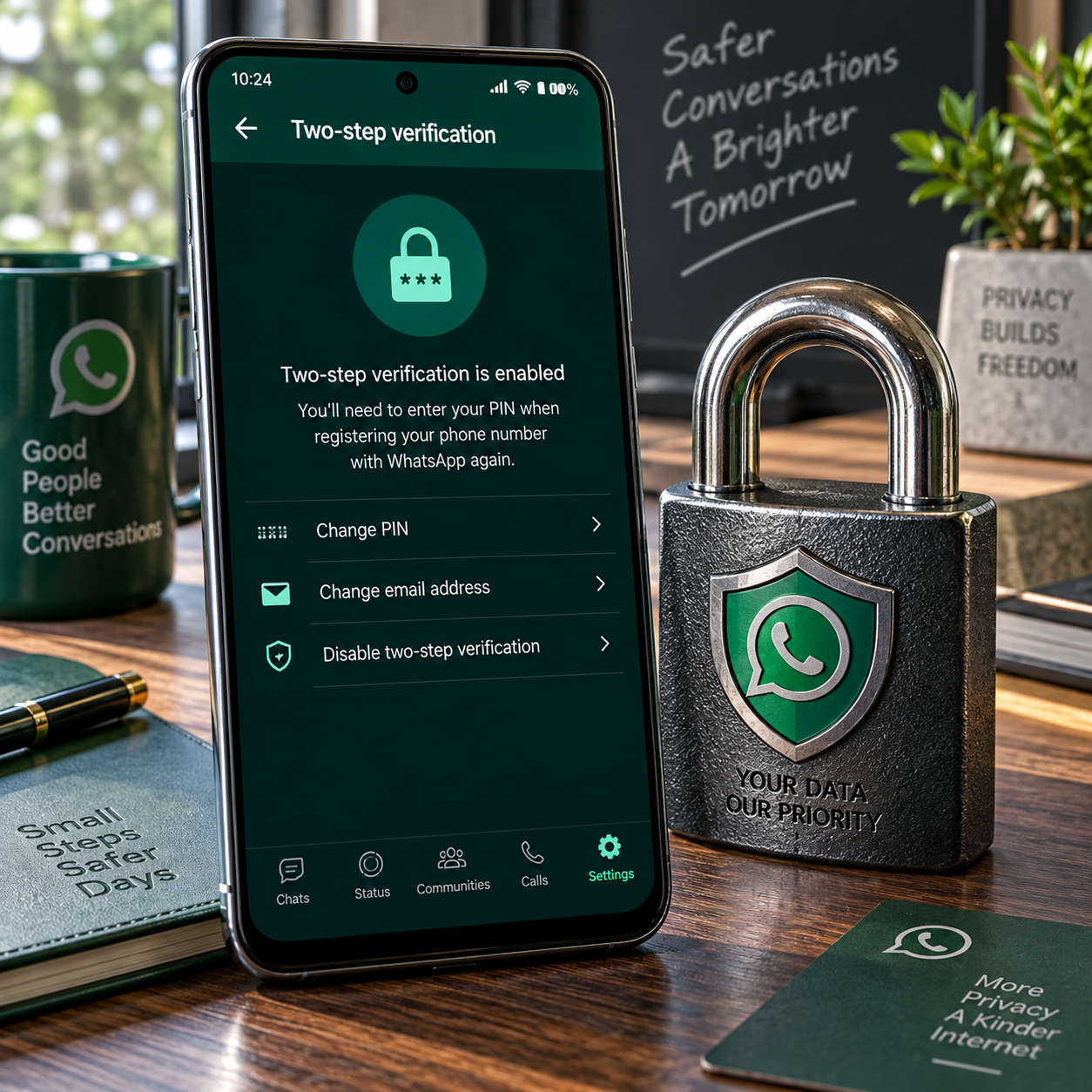
WhatsApp two-step verification adds a personal security PIN when someone tries to register your WhatsApp account on a new phone. Setting it up takes only a few minutes and can make account takeover attempts much harder, especially when combined with a protected phone, an updated app, and careful handling of verification codes.
What Is WhatsApp Two-Step Verification?
WhatsApp two-step verification is an optional security feature that requires a six-digit verification PIN in addition to the SMS registration code. The SMS code confirms control of your phone number, while the PIN provides a second account-level safeguard.
When you first register WhatsApp, the app sends a temporary SMS registration code to your phone number. This code is different from your verification PIN. A criminal who tricks you into sharing the SMS code may be able to register your WhatsApp account on another device, but two-step verification adds another barrier by requiring the PIN.
You can also add a recovery email address. WhatsApp can use it to send a reset link if you forget your PIN. The email address should belong to you and should itself be protected with a strong password and two-factor authentication where available.
Two-step verification is valuable, but it is not complete protection against every threat. It cannot prevent someone who already has access to your unlocked phone, email account, or a malicious app from causing harm. Think of it as one important lock in a broader account-security routine.
How to Enable Two-Step Verification on WhatsApp
To enable two-step verification, open WhatsApp Settings, choose Account and Two-step verification, then create a PIN and add a recovery email address. Menu names can vary slightly by phone, operating system, and WhatsApp version.
- Open WhatsApp on your phone.
- Open Settings. On some devices, you may first need to tap the three-dot menu.
- Select Account, then choose Two-step verification.
- Tap Turn on or the equivalent option.
- Create a six-digit verification PIN. Enter it again to confirm.
- Add a recovery email address when prompted, then confirm the address carefully.
- Finish the setup and make sure two-step verification is shown as enabled.
Adding an email address is strongly recommended because it gives you a practical recovery route if you forget the PIN. If you skip it, you may face a waiting period before you can regain access through WhatsApp's recovery process.
Use an email inbox that you check regularly. If your email address changes, return to the same WhatsApp settings area and update it. A recovery email is useful only when you can still access and secure the account.
After setup, WhatsApp may periodically ask you to enter the PIN. This reminder helps you remember it; it does not mean that someone is attempting to access your account. Keep the PIN private even if a message appears to come from a friend, support agent, or WhatsApp representative.
How to Choose and Protect Your Verification PIN
Choose a unique six-digit PIN that is difficult for other people to guess, and never share it with anyone. Avoid birthdays, repeated numbers, phone-number fragments, or PINs used for banking and other accounts.
A good PIN should not be obvious from information visible on your social profiles. Sequences such as 123456, 000000, or a birth year are easy targets. The goal is not to create a pattern you can explain; it is to create a number you can reliably store and retrieve.
- Use a PIN unique to WhatsApp. Reusing it elsewhere increases the damage if another service is breached.
- Do not write it in a public note or save it in an unprotected chat.
- Use a reputable password manager if you already rely on one for secure credentials.
- Do not tell friends, relatives, or alleged support agents the PIN.
- Keep your recovery email secure with its own strong password and security controls.
Scammers often create urgency: they may claim that your account is being closed or that a contact needs help receiving a code. WhatsApp will not need you to forward an SMS registration code or reveal your verification PIN. If someone asks, stop the conversation and verify the situation through a separate channel.
Choosing a memorable but private PIN means accepting one trade-off: the more unusual it is, the easier it may be to forget. A secure storage method is safer than choosing an obvious number simply because it is easy to remember.
How to Change or Disable Two-Step Verification
To change or disable two-step verification, open WhatsApp Settings, go to Account, select Two-step verification, and choose the relevant option. You may need to enter your current PIN before WhatsApp allows changes.
Change the verification PIN
Use Change PIN when you think someone may know the current number, when you have reused it elsewhere, or when you want to replace an old PIN. Enter a new six-digit PIN and confirm it. Do not choose a number that resembles the previous one.
Change the recovery email address
Select Change email address to replace the recovery email. Check every character before saving, especially if the address contains dots, numbers, or unusual spelling. An incorrect email can leave you without a workable recovery path.
Disable two-step verification
Select Disable only when you understand the consequence. Turning the feature off removes the additional PIN requirement, which makes account registration less protected if someone obtains your SMS registration code. If you are troubleshooting, changing the PIN or updating the email is usually safer than disabling the feature.
WhatsApp may present slightly different wording as its app evolves. If you cannot find an option, update WhatsApp through your device's official app store and review the current Account settings.
What to Do If You Forget Your WhatsApp PIN
If you forget your WhatsApp PIN, use the recovery email to request a reset link; without a recovery email, you may need to wait before registering the account again. Do not guess repeatedly or trust anyone offering to recover it for you.
When a recovery email is available
- Open WhatsApp and follow the prompt for a forgotten PIN.
- Choose the option to send a reset link to your recovery email address.
- Open the message in your email account and follow the official reset instructions.
- Return to WhatsApp, create a new PIN, and confirm it.
Check spam, junk, and filtered folders if the email does not arrive. Make sure you are checking the same address saved in WhatsApp. Never click a suspicious link that asks for your password, payment details, or SMS registration code.
When no recovery email is available
If you did not add an email address, or you can no longer access it, WhatsApp may require a waiting period before you can reset the PIN. The exact process and timing can depend on the account and current app rules. Continue using only official WhatsApp prompts and avoid third-party recovery services.
If you suspect an active account takeover, contact people who may have received unusual messages from your account and warn them not to open links or send money. Secure your phone number with your mobile provider and review linked devices as soon as you regain access.
Additional WhatsApp Account-Security Tips
Protect your WhatsApp account by securing the phone, keeping the app updated, reviewing linked devices, and refusing every request for registration or verification codes. Two-step verification works best as part of a layered routine.
- Lock your phone. Use a strong device passcode, biometric protection, and automatic screen locking.
- Keep WhatsApp and your operating system updated. Updates can include security fixes and improvements to account controls.
- Review linked devices. Open WhatsApp Settings and check which browsers or computers are connected. Log out of anything unfamiliar or no longer needed.
- Protect your SIM and phone number. Ask your mobile provider about an account PIN or safeguards against unauthorized SIM replacement.
- Never share codes. Treat the SMS registration code, verification PIN, and email reset link as private credentials.
- Watch for impersonation. A message from a known contact can still be fraudulent if that person's account has been compromised.
- Review security notifications. WhatsApp may show alerts when a contact's security code changes. Verify unexpected changes through another trusted channel.
A quick monthly check is enough for most people: confirm two-step verification remains enabled, review linked devices, update the app, and verify that your recovery email is still accessible. These checks take little time and can expose a problem before it becomes an account takeover.
Common Questions About Two-Step Verification
WhatsApp two-step verification protects account registration with a private PIN, while the SMS code verifies the phone number. The feature can support recovery, but users must still protect their devices, email accounts, and private codes.
Is WhatsApp two-step verification different from the SMS code?
Yes. The SMS registration code is a temporary code sent to your phone number when you register WhatsApp. The verification PIN is a separate six-digit number that you create and keep private. You should never forward either one.
What happens if I forget my verification PIN?
If you added a recovery email address, request a reset link through WhatsApp and follow the official instructions. Without one, WhatsApp may make you wait before allowing a reset or new registration. Guessing does not provide a shortcut.
Should I add a recovery email address?
Yes, in most cases. A recovery email gives you a way to reset a forgotten PIN. Secure the email account carefully because anyone who controls it may be able to interfere with recovery.
Can I change or disable two-step verification?
Yes. Go to WhatsApp Settings, Account, and Two-step verification. From there, you can usually change the PIN, update the recovery email, or disable the feature after confirming your identity.
Should I share my WhatsApp PIN or registration code?
No. WhatsApp support, friends, and legitimate contacts should never need you to send these credentials. A request for a code or PIN is a common sign of phishing or an attempted account takeover.
For the strongest everyday protection, enable two-step verification, add a secure recovery email, use a unique PIN, and review linked devices regularly. That simple checklist keeps the most important WhatsApp account controls in your hands.