How to Set Up WhatsApp Automated Replies for Your Business
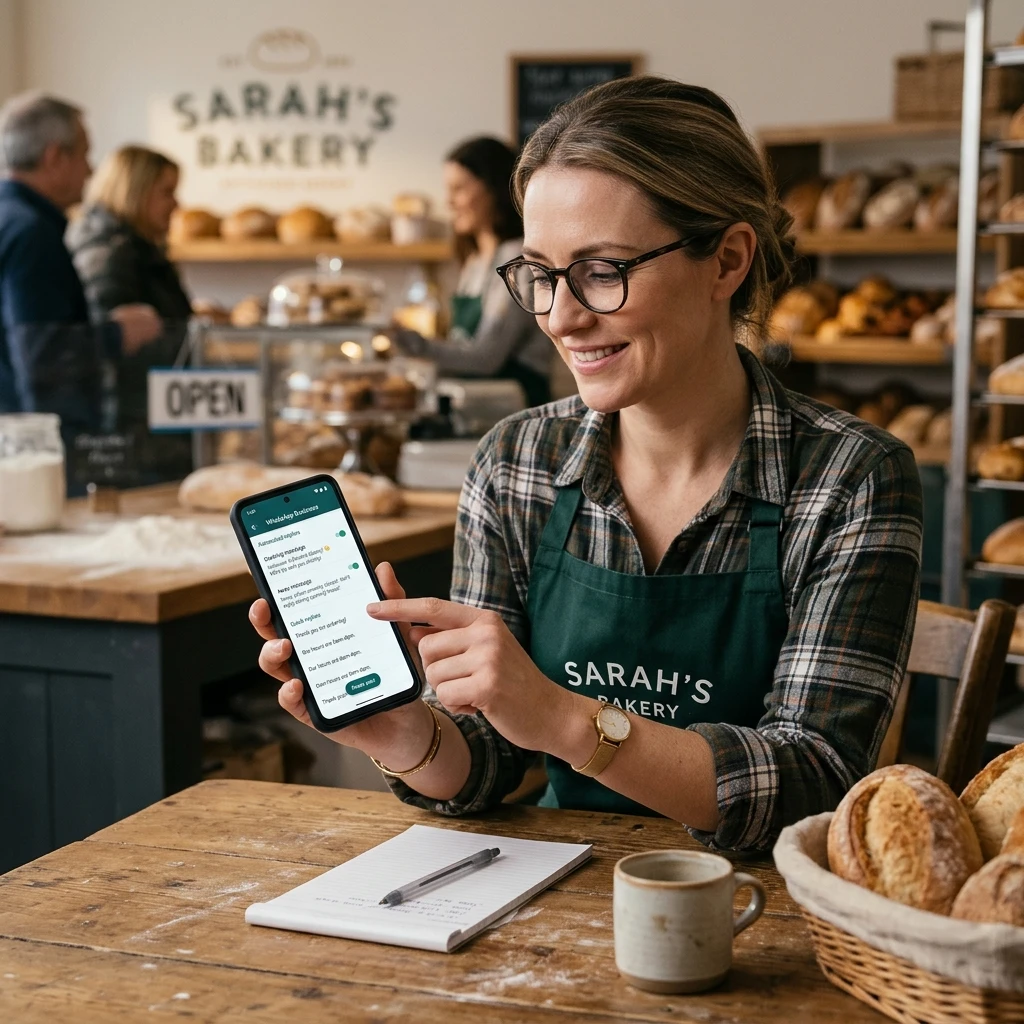
WhatsApp automated replies help your business acknowledge customers when you are busy, closed, or answering the same question for the tenth time that day. In the WhatsApp Business app, you can use greeting messages and away messages to send automatic responses; quick replies are saved answers that you send yourself when needed.
Choosing the right feature matters. A welcome message should feel different from an after-hours notice, and neither should promise a response time your team cannot meet. Here is how to configure each option and check that it works as expected.
Choose the Right WhatsApp Reply Feature
WhatsApp Business offers three useful reply tools: greeting messages welcome customers, away messages respond when you are unavailable, and quick replies let you insert saved answers manually. Choose based on when the customer writes and whether a person needs to review the response.
- Greeting message: An automatic welcome for customers who contact you for the first time or after a period without a conversation, depending on the app’s current behavior. Use it to introduce your business and explain what information to send.
- Away message: An automatic notice for times when you cannot respond, such as outside business hours or during a planned closure. It can set expectations and offer a next step.
- Quick replies: Saved text snippets for frequent questions about prices, booking, delivery, or opening hours. You choose and send them during a chat; they do not trigger automatically.
Think of the tools as a simple response ladder: greet, set availability expectations, then answer recurring questions efficiently. The WhatsApp Business app’s labels and menu locations can vary by operating system and version, so check the current in-app settings if a named option appears elsewhere.
Set Up a Greeting Message
To set up a WhatsApp Business greeting message, open the app’s business tools, select the greeting-message option, turn it on, and edit the text before choosing recipients. The greeting can acknowledge an incoming conversation while your team prepares a personal response.
- Open WhatsApp Business and go to Business tools. On some versions, this is under the menu or settings screen.
- Tap Greeting message and switch on Send greeting message.
- Select the message field, write a concise welcome, and save it.
- Open recipient settings and choose who should receive it. Options may include everyone, people outside your address book, selected contacts, or exclusions; available choices can vary.
A useful greeting says who you are and gives the customer a helpful prompt: “Thanks for contacting Northside Books. Tell us the title you’re looking for, and we’ll check availability.” Avoid adding a long list of policies or claiming someone is replying immediately if the team may be away.
Before enabling it, consider whether a greeting adds value for returning customers as well as new ones. If the app sends greetings after a period of inactivity, make the wording broad enough to suit both situations.
Configure an Away Message
To configure a WhatsApp Business away message, enable the feature in Business tools, write an after-hours response, set its schedule, and choose recipients. The schedule determines when the app sends the notice, while recipient settings control which chats receive it.
- Go to Business tools and open Away message.
- Turn on Send away message, then enter a short explanation of when you will respond.
- Under Schedule, select the option that matches your availability. Depending on the app version, choices may include always send, a custom schedule, or outside business hours.
- If using business hours, make sure your profile’s hours reflect your actual operating schedule. Check time zones and any holiday closures that require a temporary change.
- Choose the recipients, review the selected audience, and save your settings.
For example: “We’re closed for the day. We’re open Monday to Friday, 9 a.m.–5 p.m. Please leave your order number, and we’ll reply during business hours.” If you use a custom schedule, verify the start and end times rather than assuming the app will infer your working hours.
Recipient settings deserve a final check. Sending an away message to every contact may be appropriate during a full closure, but selected recipients or exclusions can be better when staff remain available for certain customers. The exact controls may differ between app versions.
Create Quick Replies for Common Questions
Quick replies are saved answers for frequently asked questions, and you send them manually from a WhatsApp Business chat. They save typing while leaving a person in control of which answer fits the customer’s situation.
- Open Business tools and choose Quick replies.
- Tap to add a reply, enter the reusable message, and create a short shortcut, such as /hours or /delivery.
- Save it. In a chat, type the shortcut or use the quick-reply control, select the right saved response, and review it before sending.
Prepare a small library for questions your team answers often: opening hours, accepted payment methods, delivery areas, booking instructions, or return steps. For instance, a delivery reply might say, “We deliver within the city. Send your postcode and preferred delivery day so we can confirm availability.”
Keep the answer current and easy to personalize. A quick reply about price should leave room to confirm the product or service, and a template should not expose one customer’s details in another chat. Since quick replies are not automatic, they are a poor substitute for an away message when the business is closed.
Write Automated Replies Customers Find Helpful
Helpful WhatsApp automated replies are brief, specific, and honest about what happens next. Tell customers whether the message is an acknowledgement, when a person is likely to respond, and what information they can provide in the meantime.
Use a simple three-part pattern: acknowledge the message, set an expectation, give a next step. For example: “Thanks for messaging Green Lane Repairs. We’re helping customers now and will reply by 2 p.m. Please send a photo of the issue if you have one.” Only include a response deadline if your team can reliably meet it.
- Write in your usual business voice, but keep the wording clear on a small phone screen.
- Use a real business-hours window rather than “soon” or “as quickly as possible.”
- Ask for only the details needed to help, such as an order number or booking date.
- Tell customers what to do for urgent matters, if your business has an appropriate alternative contact method.
- Review messages when prices, hours, delivery rules, or policies change.
A common mistake is making an automated reply sound like a human has already reviewed the request. That can frustrate someone whose issue needs attention. Label the message clearly as an automatic acknowledgement, then make sure a staff member follows up within the stated timeframe.
Test and Troubleshoot Your Setup
To test WhatsApp automated replies, review each feature’s toggle, message, schedule, and recipient rules, then send a message from a separate account under the conditions you expect. A test confirms both the text and the circumstances that trigger it.
Use this checklist:
- Confirm the greeting or away message is switched on and saved.
- Check business hours, custom schedule times, and the phone’s time zone.
- Review recipient settings for exclusions or selected-contact limits.
- Test a greeting with a number that meets the app’s current greeting criteria, and test the away message during its scheduled period.
- Open a chat and test a quick-reply shortcut separately; remember that it requires a person to send it.
If an automatic response does not arrive, first check whether the message was sent outside the relevant schedule or from a contact excluded by recipient settings. Then confirm you are using WhatsApp Business rather than the standard WhatsApp app, update the app if an option is missing, and save the settings again. Some behavior depends on the app version and feature rules, so a single test may not represent every customer’s chat history.
Finally, ask a colleague to test from a different number and report exactly what they saw. This catches issues that are easy to miss when testing from the business account itself, such as an audience rule that excludes the tester.
Frequently Asked Questions
Are automated replies available in regular WhatsApp?
The greeting and away message tools described here are features of the WhatsApp Business app, not standard personal WhatsApp. Regular WhatsApp users can send messages manually, but should not assume the same business automation settings are available.
Can I schedule an away message for specific hours?
WhatsApp Business may offer a custom schedule or an outside-business-hours option for away messages. The choices can vary by version, so check the current schedule controls and confirm your business hours are accurate.
Do quick replies send automatically?
No. Quick replies are saved responses that a person selects and sends in a chat. Greeting and away messages are the features that can send automatic responses under their configured conditions.
Why might an automated reply not be sent?
Common causes include the feature being turned off, a schedule that does not apply, recipient settings that exclude the sender, or using the standard WhatsApp app instead of WhatsApp Business. Check those settings first, then test again with a suitable account.