How to Use WhatsApp Web for Seamless Messaging: A Complete Guide
What Is WhatsApp Web and Why Use It?
WhatsApp Web is a browser-based extension of the WhatsApp mobile app that allows you to send and receive messages from your computer. It syncs chats and media seamlessly, offering a convenient way to stay connected without switching devices.
Using WhatsApp Web alongside your WhatsApp mobile app lets you type faster with a physical keyboard, share files directly from your desktop, and manage conversations in a larger view. It’s especially useful for those who spend long hours on a computer and want uninterrupted desktop messaging without reaching for their phone constantly.
Additionally, WhatsApp Web supports real-time synchronization, meaning messages sent or received on your phone instantly appear on the web interface, maintaining perfect continuity.
Step-by-Step Setup: Connecting WhatsApp Web to Your Phone
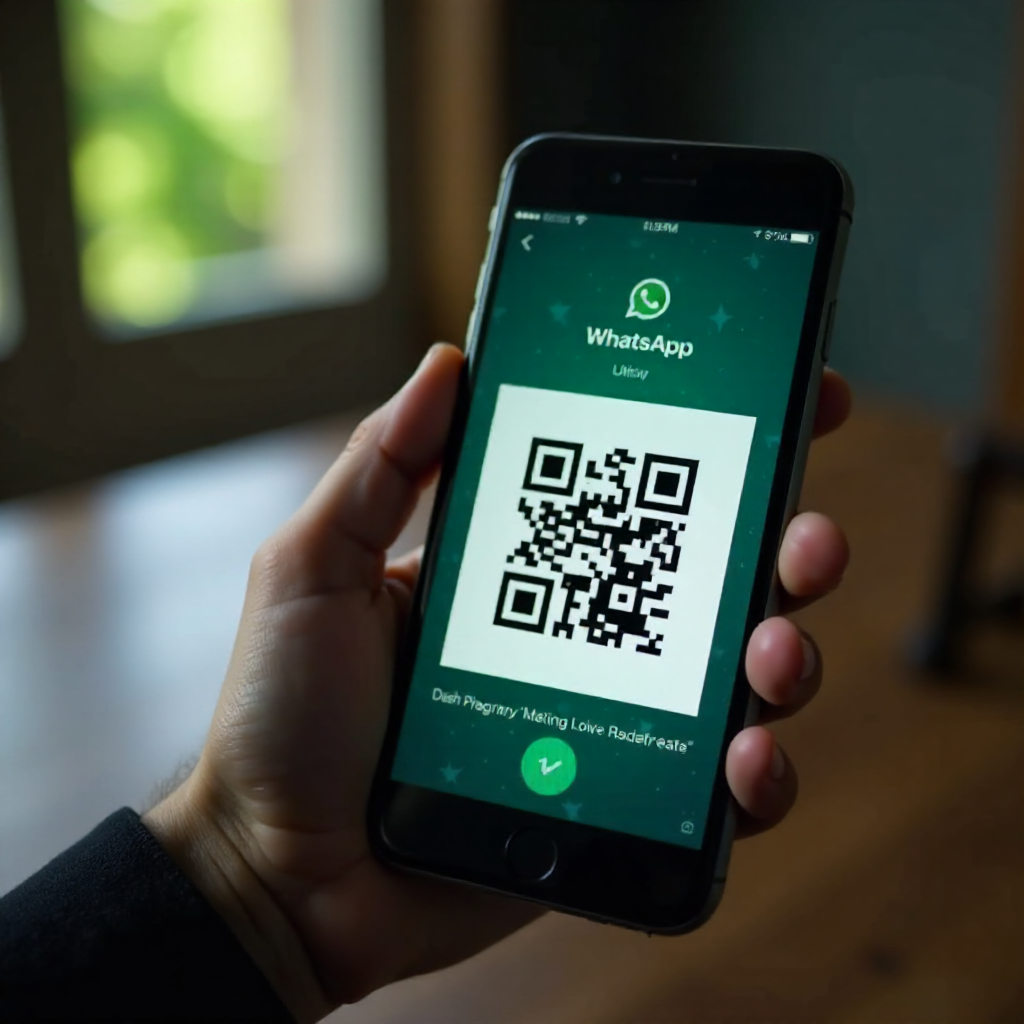
To start using WhatsApp Web, you must pair your phone with the web client through a simple, secure QR code scanning process.
- Open the WhatsApp Web page: Go to web.whatsapp.com in a compatible browser such as Chrome, Firefox, Edge, or Safari.
- Launch WhatsApp on your mobile device: On Android or iPhone, open the WhatsApp app and tap the menu (three dots or settings icon).
- Access the WhatsApp Web/Desktop option: Select "Linked Devices" (or "WhatsApp Web/Desktop" in older versions) from the menu.
- Scan the QR code: Tap "Link a Device" on your phone, then point your phone’s camera at the QR code displayed on the WhatsApp Web page.
- Wait for synchronization: After scanning, your phone will sync conversations and media to the web client instantly.
With multi-device support, you can link up to four computers without needing your phone to stay online constantly. However, the initial QR code scan still requires the phone’s involvement.
Navigating the WhatsApp Web Interface: Key Features Explained
The WhatsApp Web interface mirrors the mobile app’s core functions but optimized for desktop use.
- Chat List and Search: Your conversations appear on the left panel with the latest messages and contacts. Use the search bar at the top to quickly find chats or contacts.
- Message Window: The center/right panel displays the current chat with message bubbles, timestamps, and read receipts.
- Media Sharing: You can send photos, videos, documents, and voice notes directly from your desktop by clicking the paperclip icon. Drag-and-drop functionality also speeds up sharing files.
- Status Updates: Access friends’ statuses via an icon on the left sidebar, view updates, and post your own with text, images, or videos.
- Group Chats and Notifications: Join group conversations with all functions intact, receive desktop notifications, and customize alert preferences under notification settings.
- Profile and Settings: Manage your profile picture, privacy settings, and logged devices from the gear icon menu.
WhatsApp Web offers a clean layout that balances functionality with simplicity, helping you focus on messaging without distractions.
Tips for Seamless Messaging and Productivity on WhatsApp Web
Maximize your efficiency using WhatsApp Web with these practical tips designed for speed and convenience.
- Master Keyboard Shortcuts: Use shortcuts like Ctrl + N to start a new chat, Ctrl + Shift + ] or [ to navigate chats, and Ctrl + E to archive conversations. These save time and keep your fingers on the keyboard.
- Manage Notifications: Tailor desktop notifications so you only get alerts for important chats or mute noisy groups directly from the web interface to avoid distractions.
- Drag and Drop Files: Easily share photos, PDFs, or presentations by dragging files from your desktop straight into the chat window instead of manually using the upload button.
- Use Multi-Device Support Wisely: Link multiple devices to switch between your laptop, desktop, and tablet smoothly. Be sure to log out of unused sessions for security.
- Pin High-Priority Chats: Keep frequently messaged contacts or groups at the top, so you don’t waste time searching through your chat list.
- Customize Chat Wallpaper: Adjust the chat background to reduce eye strain during long typing sessions.
These tips create a faster, more comfortable messaging experience while leveraging desktop advantages.
Troubleshooting Common Issues on WhatsApp Web
Despite its reliability, WhatsApp Web can face connectivity or synchronization issues for various reasons. Here are solutions to typical problems:
- Connection Drops: This often occurs when your phone or computer loses internet access. Ensure both devices have stable connections and try refreshing the web page.
- QR Code Not Scanning: Clean your phone’s camera lens and ensure the QR code on screen is fully visible without glare or obstruction. Reload the page if the code expires.
- Messages Not Syncing: If new messages don’t appear, check that your mobile app runs the latest version and restart both phone and browser. Clear browsing data and cache if needed.
- Browser Compatibility Issues: WhatsApp Web supports major browsers but older versions can cause glitches. Update your browser or try a different one like Chrome or Firefox.
- Logged Out Unexpectedly: WhatsApp Web automatically logs out if you change your phone’s WhatsApp or log out on phone for security. Re-link devices via QR code scanning.
Addressing these common issues helps maintain smooth, uninterrupted desktop messaging without frustration.
Security and Privacy Best Practices When Using WhatsApp Web
Maintaining security on WhatsApp Web is crucial since it provides access to your chats on a larger screen and shared environments.
- End-to-End Encryption: WhatsApp Web messages remain protected by end-to-end encryption, ensuring only you and your chat partner can read messages, even during synchronization.
- Manage Linked Devices: Regularly check devices linked to your WhatsApp account under the mobile app’s "Linked Devices" section. Immediately log out from any unfamiliar or unused sessions.
- Avoid Public or Shared Computers: Using WhatsApp Web on public devices increases risk. If necessary, always log out thoroughly and clear browser data after use.
- Enable Two-Step Verification: Add an extra layer of security to your WhatsApp account on your phone, which indirectly protects your web sessions.
- Adjust Notification Privacy: Customize notification previews on desktop so message snippets don’t display when the screen is locked or viewed by others nearby.
Taking these precautions ensures your messages stay confidential and your account remains secure while enjoying WhatsApp Web’s convenience.
Frequently Asked Questions About WhatsApp Web
Can I Use WhatsApp Web Without My Phone Nearby?
WhatsApp recently introduced multi-device support, allowing you to use WhatsApp Web without your phone being constantly online. However, the initial setup still requires your phone to scan the QR code. Once linked, your desktop can send and receive messages independently for up to 14 days.
How to Log Out of WhatsApp Web Remotely?
You can log out of WhatsApp Web sessions remotely by opening WhatsApp on your phone, going to "Linked Devices," and selecting the session you want to end. This is useful if you forgot to log out from a public or shared computer.
Does WhatsApp Web Support Video or Voice Calls?
WhatsApp Web currently supports voice and video calls but only through the desktop app version, not directly in the browser-based WhatsApp Web.
Why Isn’t WhatsApp Web Syncing My Messages?
Syncing issues usually result from poor internet on your phone or browser, outdated WhatsApp app versions, or expired sessions. Refreshing the page, updating apps, or re-linking devices typically resolves it.
Is WhatsApp Web Safe to Use on Public Computers?
Using WhatsApp Web on public or shared computers carries privacy risks. If necessary, always log out and clear the browser history after use. Be cautious about enabling notifications on such devices.